Scan Tips
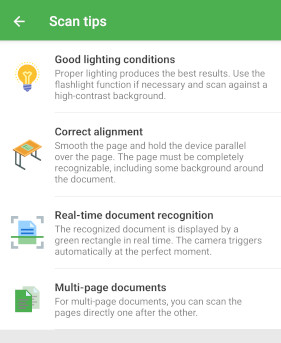
The SDK provides an optional toolbar item within the scanning screen, that when clicked, will open some tips on how to get the best scan result. By default it is activated for photo payment and disabled for document scan and shows some default items. You can customize it according to your needs or disable it completely.
Disable
To disable the scan tips, set the scanTips property to null.
For Document Scan, the scan tips are disabled by default.
val photoPaymentConfig = PhotoPaymentConfiguration().apply {
    scanTips = null
}
viewModelScope.launch {
    val result = DocutainSdk.startPhotoPayment(photoPaymentConfig)
}
Customize
Use the items property to select and arrange the default items provided by the SDK. The following examples show only the first default tip.
- Document Scan
- Photo Payment
val scanTips = ScanTips().apply {
    items = DocutainSdk.scanTipsDefaultItems().take(1)
}

val scanConfig = DocumentScannerConfiguration().apply {
    this.scanTips = scanTips
}

viewModelScope.launch {
    val result = DocutainSdk.scanDocument(scanConfig)
}
val scanTips = ScanTips().apply {
    items = DocutainSdk.scanTipsDefaultItemsPhotoPayment().take(1)
}

val photoPaymentConfig = PhotoPaymentConfiguration().apply {
    this.scanTips = scanTips
}

viewModelScope.launch {
    val result = DocutainSdk.startPhotoPayment(photoPaymentConfig)
}
The following provides an overview of the currently available options to alter the ScanTips:
| Property | Type | Description |
|---|---|---|
items | List<DocutainListItem>? | The items you want to show within the scan tips. If you don't provide any items, some default items will be displayed. |
toolbarItem | DocutainButton | The toolbar item that will be shown allowing the user to open the scan tips. |
The scan tips toolbar item can display either text or an icon. Set toolbarItem.title in commonMain if you want text. The following example uses an icon instead and enables scan tips in the shared configuration:
// commonMain
fun createScanConfigWithTips() = DocumentScannerConfiguration().apply {
    scanTips = ScanTips()
}
Add a custom tip and set the toolbar icon on the same configuration in platform code. Add drawables named custom_scan_tip and custom_tips_button to the Android module, or image sets with those names to the iOS app's asset catalog:
- androidMain
- iosMain
val scanConfig = createScanConfigWithTips().apply {
    requireNotNull(scanTips).apply {
        items = listOf(
            DocutainListItem(R.drawable.custom_scan_tip, "Good lighting", "Avoid shadows on the document.")
        )
        toolbarItem.icon = R.drawable.custom_tips_button
    }
}
viewModelScope.launch {
    DocutainSdk.scanDocument(scanConfig)
}
val scanConfig = createScanConfigWithTips().apply {
    requireNotNull(scanTips).apply {
        items = listOf(
            DocutainListItem(image = "custom_scan_tip", title = "Good lighting", message = "Avoid shadows on the document.")
        )
        toolbarItem.icon = "custom_tips_button"
    }
}
viewModelScope.launch {
    DocutainSdk.scanDocument(scanConfig)
}