Photo Payment
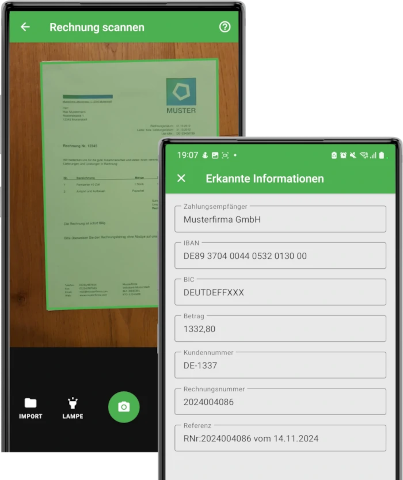
With Docutain's Photo Payment SDK you can integrate photo payment into your app within minutes. It includes ready-to-use UI components that can be altered to your needs and corporate design.
Data Protection
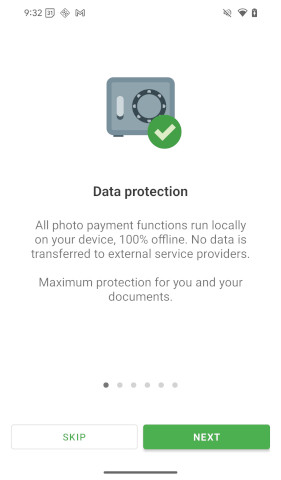
Invoices contain lots of private information that need to be protected. By using the Docutain Photo Payment SDK, you have chosen the only available solution that provides 100% data protection.
This is because all functionality, especially analyzing the document content to find the relevant payment information happens on device, 100% offline. Meaning, no data at all is transfered to any external server or cloud service.
This eliminates any data protection risk and makes the Docutain SDK the first choice.
Reliability
We all know that even the most reliable servers experience outages from time to time, which directly result in the inability to process photo payments for your users.
Since the Docutain SDK runs offline on the respective device, without any server connection, the functionality is 100% available.
Photo Payment
Initialization
- Follow the Getting started guide
- Initialize the Docutain SDK as described here
Start Photo Payment
To start the photo payment process you only have to call DocutainSdk.startPhotoPayment and wait for it to return.
You can pass options to change some behaviours and theming to adopt it to your needs. See Change default scan behaviour for possible custom settings.
import de.docutain.sdk.kmp.DocutainException
import de.docutain.sdk.kmp.DocutainSdk
import de.docutain.sdk.kmp.PhotoPaymentConfiguration

viewModelScope.launch {
    try {
        val photoPaymentConfig = PhotoPaymentConfiguration()
        val result = DocutainSdk.startPhotoPayment(photoPaymentConfig)
        if (result != null) {
            if (result.isNotEmpty()) {
                // payment information has been extracted
                // result is a JSON string containing the information
                // extract the fields you need and pass it on to your payment sheet
            } else {
                // no data was extracted at all
                // Note: this case is only reachable if you disabled the Empty Result Screen
            }
        } else {
            // user cancelled scan process
        }
    } catch (exception: DocutainException) {
        // the SDK operation failed
    }
}
See Error Handling for details about errors the SDK can throw.
Extract Payment Data
The payment data will be returned as JSON string. By default, it will have the following structure:
{
    "Address": {
        "Name1": "DB Fernverkehr AG",
        "Name2": "",
        "Name3": "",
        "Zipcode": "60643",
        "City": "Frankfurt am Main",
        "Street": "BahnCard-Service",
        "Phone": "0302970",
        "CustomerId": "",
        "Bank": [{
            "BIC": "PBNKDEFFXXX",
            "IBAN": "DE02100100100152517108"
        }]
    },
    "Date": "2026-09-17",
    "Amount": "244.00",
    "InvoiceId": "2023174086",
    "Reference": "RNr:2023174086 vom 17.09.2026",
    "SEPACreditor": "DB Vertrieb GmbH"
}
For a transfer form, use the extracted values as suggestions for these fields:
| Transfer form field | JSON field | How to use it |
|---|---|---|
| Recipient | SEPACreditor | The SEPA creditor is the payment recipient and may differ from the document sender. |
| IBAN | Address.Bank[].IBAN | The list can contain multiple bank accounts. We recommend using the IBAN from the first entry. If BIC reading is disabled, Address.IBAN[] can contain multiple IBANs; use the first entry there as well. See below for how to disable BIC reading. |
| Amount | Amount | Prefill the transfer amount. If Amount is 0.00, no amount was detected; leave the amount field empty so the user can enter it. |
| Payment reference | Reference | Prefill the transfer's purpose/reference field. |
| BIC, if needed | Address.Bank[].BIC | Always use the BIC from the same Address.Bank[] entry as the IBAN used for the transfer. The IBAN and BIC in each bank account belong together. |
If you don't need it, you can disable reading the BIC:
val photoPaymentConfig = PhotoPaymentConfiguration().apply {
    analyzeConfig.readBIC = false
}
viewModelScope.launch {
    val result = DocutainSdk.startPhotoPayment(photoPaymentConfig)
}
Instead of a Bank element, the data will then only have an IBAN element:
{
    "Address": {
        "Name1": "DB Fernverkehr AG",
        "Name2": "",
        "Name3": "",
        "Zipcode": "60643",
        "City": "Frankfurt am Main",
        "Street": "BahnCard-Service",
        "Phone": "0302970",
        "CustomerId": "",
        "IBAN": ["DE76570928000208303503", "DE41510500150710030316"]
    },
    "Date": "2026-09-17",
    "Amount": "244.00",
    "InvoiceId": "2023174086",
    "Reference": "RNr:2023174086 vom 17.09.2026",
    "SEPACreditor": "DB Vertrieb GmbH"
}
Optionally, you can enable reading the payment state, telling you whether the invoice has already been marked as paid.
val photoPaymentConfig = PhotoPaymentConfiguration().apply {
    analyzeConfig.readPaymentState = true
}
viewModelScope.launch {
    val result = DocutainSdk.startPhotoPayment(photoPaymentConfig)
}
The payment data will then have an additional value PaymentState which contains either Paid or ToBePaid:
{
    "Address": {
        "Name1": "DB Fernverkehr AG",
        "Name2": "",
        "Name3": "",
        "Zipcode": "60643",
        "City": "Frankfurt am Main",
        "Street": "BahnCard-Service",
        "Phone": "0302970",
        "CustomerId": "",
        "Bank": [{
            "BIC": "PBNKDEFFXXX",
            "IBAN": "DE02100100100152517108"
        }]
    },
    "Date": "2026-09-17",
    "Amount": "244.00",
    "InvoiceId": "2023174086",
    "Reference": "RNr:2023174086 vom 17.09.2026",
    "PaymentState": "ToBePaid",
    "SEPACreditor": "DB Vertrieb GmbH"
}
By default, the SEPACreditor is read as well. Some invoices specify a SEPA creditor that is not the same as the sender of the document, but the SEPA creditor is the recipient of the payment.
For photo payment, we recommend keeping readSEPACreditor enabled. Disabling it can remove the correct payment recipient from the extracted data when the SEPA creditor differs from the document sender.
If you do not need it for another use case, you can disable it:
val photoPaymentConfig = PhotoPaymentConfiguration().apply {
    analyzeConfig.readSEPACreditor = false
}
viewModelScope.launch {
    val result = DocutainSdk.startPhotoPayment(photoPaymentConfig)
}
The analyzeConfig of the PhotoPaymentConfiguration is a PaymentAnalyzeConfiguration and provides the following values:
| Property | Type | Default Value | Description |
|---|---|---|---|
readBIC | Boolean | true | If true, the detected data will contain the BIC, if any available. |
readPaymentState | Boolean | false | If true, the detected data will contain a field showing the payment state. Either Paid or ToBePaid. |
readSEPACreditor | Boolean | true | If true, the detected data will contain the SEPA creditor, if any available. |
GiroCode
If the scanned invoice contains a valid GiroCode, the SDK extracts the payment data directly from it instead of performing a full document analysis. This can significantly reduce processing time, especially for larger documents. If no valid GiroCode is found, the SDK automatically falls back to the standard recognition process.
GiroCode extraction is enabled by default. If you do not want it, set allowGiroCode to false:
val photoPaymentConfig = PhotoPaymentConfiguration().apply {
    allowGiroCode = false
}
viewModelScope.launch {
    val result = DocutainSdk.startPhotoPayment(photoPaymentConfig)
}
Open with / Share
To accept a PDF or image from another app via "open with" or "share", register your app as a target on each platform and pass the received URI strings to startPhotoPaymentWithExternalFiles. The SDK shows the extraction UI and returns the extracted payment data the same way as after a scan.
On Android, add intent filters for PDF and image files: ACTION_VIEW for "open with", and ACTION_SEND / ACTION_SEND_MULTIPLE for sharing one or more files. Read the URI from Intent.data or Intent.EXTRA_STREAM, respectively, and pass the readable content:// URIs as strings. Handle both the initial intent and onNewIntent so files shared while the app is already running are processed too.
On iOS, register PDFs and images in CFBundleDocumentTypes and receive the opened file through onOpenURL. A file from Files or iCloud Drive may only be readable while your app has access to its original URL. Copy it into an app-owned location while that access is active, then pass its file:// URL as a list containing exactly one entry.
In shared code, start photo payment once the SDK is initialized and a received file is pending. Consume the pending files once so recomposition does not start the same payment again. On Android, avoid processing the initial intent again when the activity is recreated.
// fileUris contains the URI strings handed over by the platform's share/open-with handler.
viewModelScope.launch {
    val result = DocutainSdk.startPhotoPaymentWithExternalFiles(fileUris)
    // Handle the JSON result, or null if the user cancelled.
}
For a complete Compose example of the Android and iOS open-with/share handling, see the Kotlin Multiplatform Photo Payment sample.
Onboarding
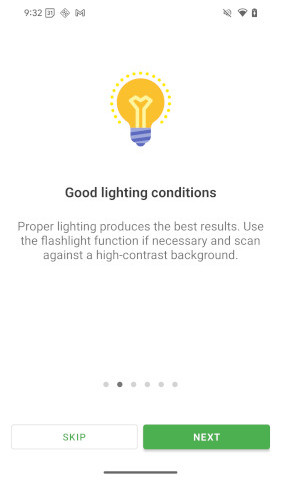
The SDK provides 2 optional onboarding possibilities that will be shown to the user on first start with some default content. You can customize it according to your needs or disable it completely.
See Onboarding for details.
Scan Tips
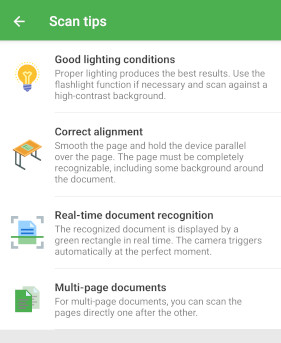
The SDK provides an optional toolbar item within the scanning screen, that when clicked, will open some tips on how to get the best scan result. By default it is activated and shows some default items. You can customize it according to your needs or disable it completely.
See Scan Tips for details.
Empty Result Screen
By default, when no payment data could be extracted (meaning, no IBAN, no SEPACreditor, no Amount), the SDK provides a screen with some tips and an option to cancel or to retry the scan. You can customize it according to your needs or disable it completely.
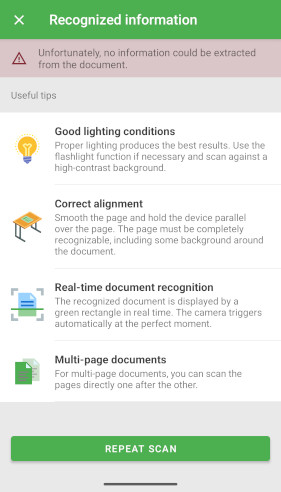
Disable
To disable the empty result screen, set the emptyResultScreen option to null:
val photoPaymentConfig = PhotoPaymentConfiguration().apply {
    emptyResultScreen = null
}
viewModelScope.launch {
    val result = DocutainSdk.startPhotoPayment(photoPaymentConfig)
}
Customize
Button colors are configured by the global color configuration.
Use the items property to select and arrange the default items provided by the SDK.
The following provides an overview of the currently available options to alter the emptyResultScreen:
| Property | Type | Description |
|---|---|---|
items | List<DocutainListItem>? | The items you want to show on the empty result screen. If you don't provide any items, some default items will be displayed. |
title | String? | The title to be displayed in the top toolbar. |
repeatButton | DocutainButton | The button that restarts the scan process. |
You can get the default items used by the SDK to use them for your own list.
val emptyResultScreenDefaultItems = DocutainSdk.emptyResultScreenDefaultItems()
Create the Photo Payment configuration and set the repeat button title in commonMain:
// commonMain
fun createPhotoPaymentConfigWithEmptyResult() = PhotoPaymentConfiguration().apply {
    emptyResultScreen = EmptyResultScreen().apply {
        repeatButton.title = "Repeat scan"
    }
}
You can add an item with a custom image and change the repeat button icon on the same configuration instance. Add drawables named custom_empty_result and custom_repeat to the Android module, or image sets with those names to the iOS app's asset catalog:
- androidMain
- iosMain
val photoPaymentConfig = createPhotoPaymentConfigWithEmptyResult().apply {
    requireNotNull(emptyResultScreen).apply {
        items = listOf(DocutainListItem(R.drawable.custom_empty_result, "No payment data", "Try scanning again."))
        repeatButton.icon = R.drawable.custom_repeat
    }
}
viewModelScope.launch {
    DocutainSdk.startPhotoPayment(photoPaymentConfig)
}
val photoPaymentConfig = createPhotoPaymentConfigWithEmptyResult().apply {
    requireNotNull(emptyResultScreen).apply {
        items = listOf(DocutainListItem(image = "custom_empty_result", title = "No payment data", message = "Try scanning again."))
        repeatButton.icon = "custom_repeat"
    }
}
viewModelScope.launch {
    DocutainSdk.startPhotoPayment(photoPaymentConfig)
}
Change default scan behaviour
PhotoPaymentConfiguration
You can use the PhotoPaymentConfiguration to alter the default scan behaviour to your needs. Currently the following values can be set from shared code:
| Property | Type | Default Value | Description |
|---|---|---|---|
allowCaptureModeSetting | Boolean | false | If true, the document scanner toolbar will display an item that allows the user to switch between automatic and manual camera triggering. |
autoCapture | Boolean | true | If true, the camera will capture the image automatically at the right moment. |
defaultScanFilter | ScanFilter | ILLUSTRATION | The default scan filter that will be used after scan. |
pageEditConfig | PageEditConfiguration | PageEditConfiguration | Configuration class used to alter the default page editing behaviour. |
source | Source | CAMERA_IMPORT | The source of the Document Scanner. |
autoCrop | Boolean | false | If true, the image gets automatically cropped if document was detected. This applies only when importing images. |
multiPage | Boolean | true | If true, scanning multi page documents is possible. Set this to false if you need to scan single page documents. |
preCaptureFocus | Boolean | true | If true, the camera will run a focus action right before taking the image. This improves the quality of the scanned images, but depending on the device, image capture might take a little bit longer. Available only on Android. |
cameraPreviewMaxResolutionLoss | Int | 0 | How much of the captured image's resolution (0–100) may be cropped away so the camera preview can fill more of the screen. The captured image always shows exactly what is visible in the preview. With 0, the preview uses the camera's native aspect ratio (usually 4:3) and the full resolution is kept. With 100, the preview always fills the whole available screen area, no matter how much resolution is lost. The resolution affects, among other things, the quality of data extraction. Because Photo Payment relies on extracting the payment data, we strongly recommend keeping the default value 0 to use the full resolution. Available only on Android. |
textConfig | TextConfiguration | TextConfiguration | Configuration class used to alter the default text behaviour. |
buttonConfig | ButtonConfiguration | ButtonConfiguration | Configuration class used to alter the default buttons. |
colorConfig | ColorConfiguration | ColorConfiguration | Configuration class used to alter the default color theming behaviour. |
confirmPages | Boolean | false | If true, a list of all pages (thumbnails) will be displayed before the scan process can be finished. |
allowPageEditing | Boolean | true | If true, after the scan screen is finished, an editing screen with the captured images will be displayed. |
statusBarAppearance | StatusBarAppearance? | null | Overrides the status bar appearance. This only applies to Android. |
navigationBarAppearance | NavigationBarAppearance? | null | Overrides the navigation bar appearance. This only applies to Android. |
onboarding | Onboarding? | SDK default | An optional onboarding when the user opens the scanner for the first time. See Onboarding. |
scanTips | ScanTips? | SDK default | An optional toolbar item that shows scan tips when clicked. See Scan Tips. |
analyzeConfig | PaymentAnalyzeConfiguration | PaymentAnalyzeConfiguration | A configuration class used to alter the default document analysis behaviour for payment. See Extract Payment Data. |
vibrateOnCapture | Boolean | true | If true, when an image is captured, the device vibrates to signal successful capture. |
emptyResultScreen | EmptyResultScreen? | SDK default | A screen that will be displayed if no payment information could be extracted. See Empty Result Screen. |
allowGiroCode | Boolean | true | If true, GiroCode data will be extracted. See GiroCode. |
All parameters in PhotoPaymentConfiguration are optional.
Set allowPageEditing to false to skip the editing screen and make the photo payment process even faster.
The following sample shows how to disable page editing completely:
val photoPaymentConfig = PhotoPaymentConfiguration().apply {
    allowPageEditing = false
}
viewModelScope.launch {
    val result = DocutainSdk.startPhotoPayment(photoPaymentConfig)
}
PageEditConfiguration
You can use the PageEditConfiguration to alter the default page editing behaviour of the document scanner to your needs. Currently the following values can be set:
| Property | Type | Default Value | Description |
|---|---|---|---|
allowPageFilter | Boolean | false | If false, the bottom toolbar will hide the filter page item. |
allowPageRotation | Boolean | false | If false, the bottom toolbar will hide the rotate page item. |
allowPageArrangement | Boolean | false | If false, the bottom toolbar will hide the arrange page item. |
allowPageCropping | Boolean | true | If false, the bottom toolbar will hide the page cropping item. |
allowPageRetake | Boolean | true | If true, the bottom toolbar will show a button allowing to retake the current page. |
allowPageAdd | Boolean | true | If true, the bottom toolbar will show a button allowing to add a new page. |
allowPageDeletion | Boolean | true | If true, the menu item for deleting pages will be displayed in the toolbar. |
pageArrangementShowDeleteButton | Boolean | false | If true, each item of the page arrangement functionality will show a delete button. |
pageArrangementShowPageNumber | Boolean | true | If true, each item of the page arrangement functionality will show its page number. |
The following sample shows how to disable the page retake button:
val photoPaymentConfig = PhotoPaymentConfiguration().apply {
    pageEditConfig.allowPageRetake = false
}
viewModelScope.launch {
    val result = DocutainSdk.startPhotoPayment(photoPaymentConfig)
}
TextConfiguration
You can use the TextConfiguration to alter the default text behaviour of the document scanner to your needs. If a value does not get set explicitly, the default value provided by the SDK will be used. Currently the following values can be set:
| Property | Type | Description |
|---|---|---|
textSizeBottomToolbar | Float? | The text size of elements residing in the bottom toolbar. |
textSizeTopToolbar | Float? | The text size of menu items residing in the top toolbar. |
textSizeScanButtons | Float? | The text size of the buttons in the scan page, located at the lower part, like the torch button. |
textSizeTitle | Float? | The text size of the title in the top toolbar. By default, auto shrinking down till 9.0 is enabled. If you define your custom size, automatic shrinking will be disabled. |
textTitleScanPage | String? | The title to be displayed in the scan page top toolbar. |
textTitleEditPage | String? | The title to be displayed in the edit page top toolbar. |
textTitleFilterPage | String? | The title to be displayed in the filter page top toolbar. |
textTitleCroppingPage | String? | The title to be displayed in the cropping page top toolbar. |
textTitleArrangementPage | String? | The title to be displayed in the page arrangement page top toolbar. |
textTitleConfirmationPage | String? | The title to be displayed in the confirmation page top toolbar. |
textDocumentTitle | String? | The title to show in the top toolbar on all pages. It overwrites page specific titles, if any are set. |
textFocusHint | String? | The text to show when camera is focusing after capture got triggered. |
textFirstPageHint | String? | The text to show when user swipes to the previous page but is already at the first page. |
textLastPageHint | String? | The text to show when user swipes to the next page but is already at the last page. |
textOnePageHint | String? | The text to show when user swipes but only one page is available. |
textScanProgress | String? | The text to show in the progress popup while pages are still being processed. |
textDeleteDialogCurrentPage | String | The text for the option to delete the current page. |
textDeleteDialogAllPages | String | The text for the option to delete all pages. |
textDeleteDialogCancel | String? | The text for the cancel option. |
textTitleScanTipsPage | String? | The title to be displayed in the scan tips page top toolbar. |
All parameters in TextConfiguration are optional.
The following sample shows how to set a document title:
val photoPaymentConfig = PhotoPaymentConfiguration().apply {
    textConfig.textDocumentTitle = "Document Title"
}
viewModelScope.launch {
    val result = DocutainSdk.startPhotoPayment(photoPaymentConfig)
}
ButtonConfiguration
You can use the ButtonConfiguration to alter the default buttons of the scanner. Each button is a DocutainButton: change its title from shared code, or its icon in androidMain or iosMain.
Currently the following buttons can be set:
| Button | Default Value | Description |
|---|---|---|
buttonEditRotate |  | The button that rotates the current page. |
buttonEditCrop |  | The button that opens the cropping functionality. |
buttonEditFilter |  | The button that opens the filter functionality. |
buttonEditArrange |  | The button that opens the page arrangement functionality. |
buttonEditRetake |  | The button that starts the process of replacing the current page with a new scan. |
buttonEditAddPage |  | The button on the edit page that opens the scan screen to add a new page. |
buttonEditDelete |  | The button that deletes the current page or opens a dialog with options if multiple pages are available. |
buttonEditFinish |  | The button that finishes the scan process. |
buttonCropExpand |  | The button that expands the cropping rectangle to the whole page. |
buttonCropSnap |  | The button that snaps the cropping rectangle to the detected document. |
buttonCropFinish |  | The button that finishes the manual cropping process. |
buttonScanAutoCaptureOn |  | The button shown when automatic capture is activated. |
buttonScanAutoCaptureOff |  | The button shown when automatic capture is deactivated. |
buttonScanTorch |  | The button that toggles the torch. |
buttonScanCapture |  | The button that triggers a manual image capture. |
buttonScanFinish |  | The button that finishes the current scan process. |
buttonScanImport |  | The button that opens a file importer. |
buttonConfirmationFinish | | The button that finishes the confirmation page. |
The following shared configuration is used in the icon examples below:
// commonMain
fun createPhotoPaymentConfig() = PhotoPaymentConfiguration().apply {
    buttonConfig.buttonEditRetake.title = "Custom Title"
}
On iOS, two cancel buttons can also be configured. Each can display either text or an icon. Set its title from shared code for text, or its icon in iosMain for an image:
| Function | Description |
|---|---|
configureEditCancelImport | Configures the button that cancels importing from the edit page. |
configureScanCancel | Configures the button that cancels the current scan. |
The following iosMain example uses icons for both cancel buttons. Add image sets named custom_cancel_import and custom_cancel_scan to the iOS app's asset catalog:
import de.docutain.sdk.kmp.configureEditCancelImport
import de.docutain.sdk.kmp.configureScanCancel

val photoPaymentConfig = createPhotoPaymentConfig().apply {
    buttonConfig.configureEditCancelImport { icon = "custom_cancel_import" }
    buttonConfig.configureScanCancel { icon = "custom_cancel_scan" }
}
viewModelScope.launch {
    DocutainSdk.startPhotoPayment(photoPaymentConfig)
}
All parameters in ButtonConfiguration are optional.
To change the retake button icon, add a drawable named custom_retake to the Android module or an image set with that name to the iOS app's asset catalog. The title from commonMain remains on the same configuration instance:
- androidMain
- iosMain
val photoPaymentConfig = createPhotoPaymentConfig().apply {
    buttonConfig.buttonEditRetake.icon = R.drawable.custom_retake
}
viewModelScope.launch {
    DocutainSdk.startPhotoPayment(photoPaymentConfig)
}
val photoPaymentConfig = createPhotoPaymentConfig().apply {
    buttonConfig.buttonEditRetake.icon = "custom_retake"
}
viewModelScope.launch {
    DocutainSdk.startPhotoPayment(photoPaymentConfig)
}
ColorConfiguration
In order to fit the Docutain Photo Payment SDK into your corporate design, you have a bunch of options to alter the default color theming of the ready-to-use UI components. See color configuration for details.