Document Scan
The Docutain Document Scanner SDK for Kotlin Multiplatform comes with integrated, ready-to-use UI components for the document scan process. Colors and button titles can be changed to match your branding from shared code. Button icons can be changed in platform-specific code.
It is also possible to use the Document Scanner on imported images.
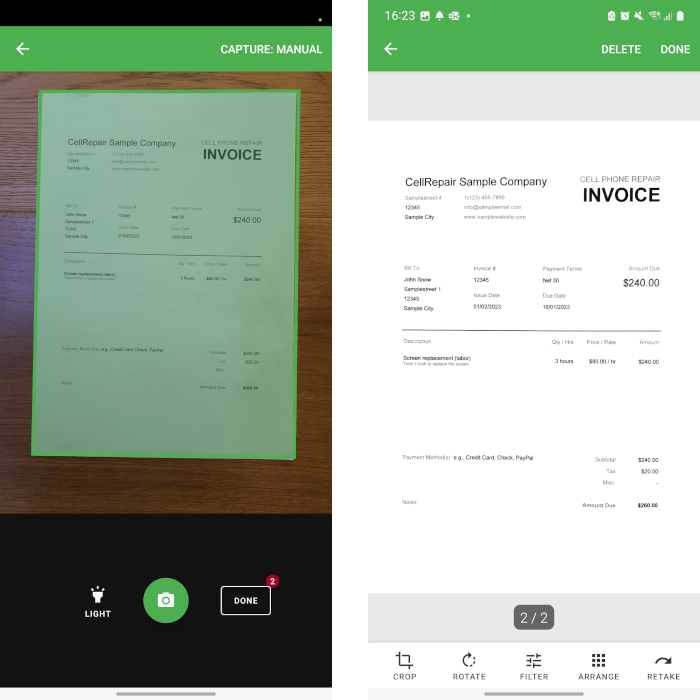
Initialization
- Follow the Getting started guide
- Initialize the Docutain SDK for Kotlin Multiplatform as described here
Scan with Camera
Start Camera Scan
To start the Document Scanner you only have to call DocutainSdk.scanDocument and wait for it to return.
An instance of DocumentScannerConfiguration can be used to launch the document scanner. It provides the possibility to change some behaviours to adapt it to your needs. See Change default scan behaviour for possible custom settings.
import de.docutain.sdk.kmp.DocutainException
import de.docutain.sdk.kmp.DocutainSdk
import de.docutain.sdk.kmp.DocumentScannerConfiguration

viewModelScope.launch {
    try {
        val scanConfig = DocumentScannerConfiguration()
        val result = DocutainSdk.scanDocument(scanConfig)
        if (result) {
            // user finished scan process, continue with your workflow

            // generate PDF
            val pdf = DocutainSdk.writePDF()

            // export the scanned pages as JPG
            for (page in 1..DocutainSdk.pageCount()) {
                val image = DocutainSdk.writeImage(page)
            }

            // get detected text
            val text = DocutainSdk.getText()

            // get extracted data
            val data = DocutainSdk.analyze()
        } else {
            // user cancelled scan process
        }
    } catch (exception: DocutainException) {
        // the SDK operation failed
    }
}
The SDK operations used above are suspend functions. See Coroutines and suspend functions and Error Handling for details.
Scan from imported images
It is also possible to use the Document Scanner on already taken images, for example images selected from the user's photo gallery. The process of starting the scanner on imported images is the same as when scanning with the camera. The only difference is defining a different Source in the DocumentScannerConfiguration. Possible values are:
| Value | Description |
|---|---|
CAMERA | Starts the Document Scanner using the device's camera. This is the default value. |
CAMERA_IMPORT | Same as CAMERA but shows an additional import button which the user can use to import files as well. |
GALLERY | Opens the user's photo gallery in single selection mode. The Document Scanner is run on the selected image. |
GALLERY_MULTIPLE | Opens the user's photo gallery in multi selection mode. The Document Scanner is run on the selected images. |
The following sample shows how to open the photo gallery in multi selection mode and run the Document Scanner on the selected images:
import de.docutain.sdk.kmp.Source

val scanConfig = DocumentScannerConfiguration().apply {
    source = Source.GALLERY_MULTIPLE
}

viewModelScope.launch {
    val result = DocutainSdk.scanDocument(scanConfig)
}
Onboarding
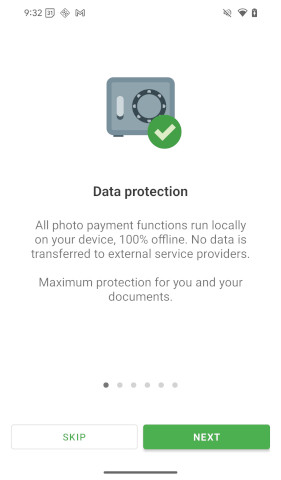
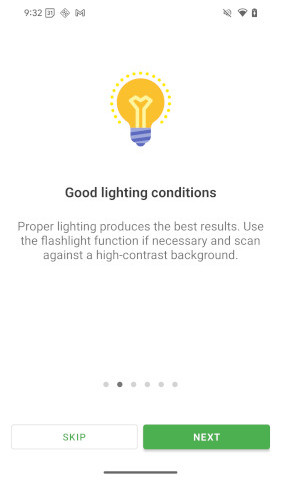
The SDK provides 2 optional onboarding possibilities that will be shown to the user on first start with some default content. You can customize it according to your needs or disable it completely.
See Onboarding for details.
Scan Tips
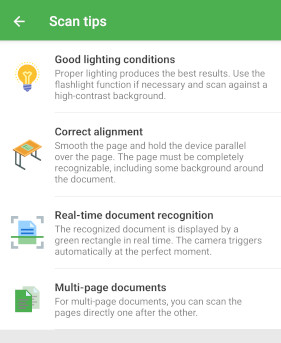
The SDK provides an optional toolbar item within the scanning screen that, when clicked, will open some tips on how to get the best scan result. By default it is deactivated. You can enable it and show some default tips or customize it according to your needs.
See Scan Tips for details.
Change default scan behaviour
DocumentScannerConfiguration
You can use the DocumentScannerConfiguration to alter the default scan behaviour to your needs. Currently the following values can be set from shared code:
| Property | Type | Default Value | Description |
|---|---|---|---|
allowCaptureModeSetting | Boolean | false | If true, the document scanner toolbar will display an item that allows the user to switch between automatic and manual camera triggering. |
autoCapture | Boolean | true | If true, the camera will capture the image automatically at the right moment. |
defaultScanFilter | ScanFilter | ILLUSTRATION | The default scan filter that will be used after scan. See ScanFilter for possible values. |
pageEditConfig | PageEditConfiguration | PageEditConfiguration | Configuration class used to alter the default page editing behaviour. |
source | Source | CAMERA | The source of the Document Scanner. See Scan from imported images for more details. |
autoCrop | Boolean | true | If true, the image gets automatically cropped if a document was detected. This applies only when importing images. |
multiPage | Boolean | true | If true, scanning multi page documents is possible. Set this to false if you need to scan single page documents. |
preCaptureFocus | Boolean | true | If true, the camera will run a focus action right before taking the image. This improves the quality of the scanned images, but depending on the device, image capture might take a little bit longer. Used for Android only. |
cameraPreviewMaxResolutionLoss | Int | 0 | How much of the captured image's resolution (0–100) may be cropped away so the camera preview can fill more of the screen. The captured image always shows exactly what is visible in the preview. With 0, the preview uses the camera's native aspect ratio (usually 4:3) and the full resolution is kept. With 100, the preview always fills the whole available screen area, no matter how much resolution is lost. The resolution affects, among other things, the quality of data extraction. If you use data extraction, we recommend keeping the default value 0 to use the full resolution. Used for Android only. |
textConfig | TextConfiguration | TextConfiguration | Configuration class used to alter the default text behaviour. |
buttonConfig | ButtonConfiguration | ButtonConfiguration | Configuration class used to alter the default buttons. |
colorConfig | ColorConfiguration | ColorConfiguration | Configuration class used to alter the default color theming behaviour. |
confirmPages | Boolean | false | If true, a list of all pages (thumbnails) will be displayed before the scan process can be finished. |
allowPageEditing | Boolean | true | If true, after the scan screen is finished, an editing screen with the captured images will be displayed. |
statusBarAppearance | StatusBarAppearance? | null | Overrides the status bar appearance. This only applies to Android. |
navigationBarAppearance | NavigationBarAppearance? | null | Overrides the navigation bar appearance. This only applies to Android. |
onboarding | Onboarding? | SDK default | An optional onboarding when the user opens the scanner for the first time. See Onboarding. |
scanTips | ScanTips? | null | An optional toolbar item that shows scan tips when clicked. Disabled by default for the document scanner. See Scan Tips. |
vibrateOnCapture | Boolean | false | If true, the device vibrates to signal successful capture. |
All parameters in DocumentScannerConfiguration are optional.
The following sample shows how to activate the confirmation mode:
val scanConfig = DocumentScannerConfiguration().apply {
    confirmPages = true
}
viewModelScope.launch {
    val result = DocutainSdk.scanDocument(scanConfig)
}
ScanFilter
The defaultScanFilter determines which filter is applied to a page after it has been scanned. The user can still change it on the editing screen, unless you disabled the filter functionality via the PageEditConfiguration.
| Value | Description |
|---|---|
ILLUSTRATION | Optimized for pages that also contain images. This is the default. |
AUTO | Automatic filter selection. |
AUTO2 | Alternative automatic filter selection. |
TEXT | Optimized for pages that contain text only. |
GRAY | Grayscale. |
BLACKWHITE | Black and white. Pages are stored as single channel TIFF, which results in extremely small file sizes. |
ORIGINAL | No filter, the unmodified image. |
PageEditConfiguration
You can use the PageEditConfiguration to alter the default page editing behaviour of the document scanner to your needs. Currently the following values can be set:
| Property | Type | Default Value | Description |
|---|---|---|---|
allowPageFilter | Boolean | true | If false, the bottom toolbar will hide the filter page item. |
allowPageRotation | Boolean | true | If false, the bottom toolbar will hide the rotate page item. |
allowPageArrangement | Boolean | true | If false, the bottom toolbar will hide the arrange page item. |
allowPageCropping | Boolean | true | If false, the bottom toolbar will hide the page cropping item. |
allowPageRetake | Boolean | false | If true, the bottom toolbar will show a button allowing to retake the current page. |
allowPageAdd | Boolean | false | If true, the bottom toolbar will show a button allowing to add a new page. |
allowPageDeletion | Boolean | true | If true, the menu item for deleting pages will be displayed in the toolbar. |
pageArrangementShowDeleteButton | Boolean | false | If true, each item of the page arrangement functionality will show a delete button. |
pageArrangementShowPageNumber | Boolean | true | If true, each item of the page arrangement functionality will show its page number. |
All parameters in PageEditConfiguration are optional.
The following sample shows how to activate the page retake button:
val scanConfig = DocumentScannerConfiguration().apply {
    pageEditConfig.allowPageRetake = true
}
viewModelScope.launch {
    val result = DocutainSdk.scanDocument(scanConfig)
}
TextConfiguration
You can use the TextConfiguration to alter the default text behaviour of the document scanner to your needs. If a value does not get set explicitly, the default value provided by the SDK will be used. Currently the following values can be set:
| Property | Type | Description |
|---|---|---|
textSizeBottomToolbar | Float? | The text size of elements residing in the bottom toolbar. |
textSizeTopToolbar | Float? | The text size of menu items residing in the top toolbar. |
textSizeScanButtons | Float? | The text size of the buttons in the scan page, located at the lower part, like the torch button. |
textSizeTitle | Float? | The text size of the title in the top toolbar. By default, auto shrinking down till 9.0 is enabled. If you define your custom size, automatic shrinking will be disabled. |
textTitleScanPage | String? | The title to be displayed in the scan page top toolbar. |
textTitleEditPage | String? | The title to be displayed in the edit page top toolbar. |
textTitleFilterPage | String? | The title to be displayed in the filter page top toolbar. |
textTitleCroppingPage | String? | The title to be displayed in the cropping page top toolbar. |
textTitleArrangementPage | String? | The title to be displayed in the page arrangement page top toolbar. |
textTitleConfirmationPage | String? | The title to be displayed in the confirmation page top toolbar. |
textDocumentTitle | String? | The title to show in the top toolbar on all pages. It overwrites page specific titles, if any are set. |
textFocusHint | String? | The text to show when camera is focusing after capture got triggered. |
textFirstPageHint | String? | The text to show when user swipes to the previous page but is already at the first page. |
textLastPageHint | String? | The text to show when user swipes to the next page but is already at the last page. |
textOnePageHint | String? | The text to show when user swipes but only one page is available. |
textScanProgress | String? | The text to show in the progress popup while pages are still being processed. |
textDeleteDialogCurrentPage | String | The text for the option to delete the current page. |
textDeleteDialogAllPages | String | The text for the option to delete all pages. |
textDeleteDialogCancel | String? | The text for the cancel option. |
textTitleScanTipsPage | String? | The title to be displayed in the scan tips page top toolbar. |
All parameters in TextConfiguration are optional.
The following sample shows how to set a document title:
val scanConfig = DocumentScannerConfiguration().apply {
    textConfig.textDocumentTitle = "Document Title"
}
viewModelScope.launch {
    val result = DocutainSdk.scanDocument(scanConfig)
}
ButtonConfiguration
You can use the ButtonConfiguration to alter the default buttons of the scanner. Each button is a DocutainButton: change its title from shared code, or its icon in androidMain or iosMain.
Currently the following buttons can be set:
| Button | Default Value | Description |
|---|---|---|
buttonEditRotate |  | The button that rotates the current page. |
buttonEditCrop |  | The button that opens the cropping functionality. |
buttonEditFilter |  | The button that opens the filter functionality. |
buttonEditArrange |  | The button that opens the page arrangement functionality. |
buttonEditRetake |  | The button that starts the process of replacing the current page with a new scan. |
buttonEditAddPage |  | The button on the edit page that opens the scan screen to add a new page. |
buttonEditDelete |  | The button that deletes the current page or opens a dialog with options if multiple pages are available. |
buttonEditFinish |  | The button that finishes the scan process. |
buttonCropExpand |  | The button that expands the cropping rectangle to the whole page. |
buttonCropSnap |  | The button that snaps the cropping rectangle to the detected document. |
buttonCropFinish |  | The button that finishes the manual cropping process. |
buttonScanAutoCaptureOn |  | The button shown when automatic capture is activated. |
buttonScanAutoCaptureOff |  | The button shown when automatic capture is deactivated. |
buttonScanTorch |  | The button that toggles the torch. |
buttonScanCapture |  | The button that triggers a manual image capture. |
buttonScanFinish |  | The button that finishes the current scan process. |
buttonScanImport |  | The button that opens a file importer. |
buttonConfirmationFinish | | The button that finishes the confirmation page. |
The following shared configuration is used in the icon examples below:
// commonMain
fun createScanConfig() = DocumentScannerConfiguration().apply {
    autoCapture = true
    buttonConfig.buttonEditRotate.title = "Rotate"
}
On iOS, two cancel buttons can also be configured. Each can display either text or an icon. Set its title from shared code for text, or its icon in iosMain for an image:
| Function | Description |
|---|---|
configureEditCancelImport | Configures the button that cancels importing from the edit page. |
configureScanCancel | Configures the button that cancels the current scan. |
The following iosMain example uses icons for both cancel buttons. Add image sets named custom_cancel_import and custom_cancel_scan to the iOS app's asset catalog:
import de.docutain.sdk.kmp.configureEditCancelImport
import de.docutain.sdk.kmp.configureScanCancel

val scanConfig = createScanConfig().apply {
    buttonConfig.configureEditCancelImport { icon = "custom_cancel_import" }
    buttonConfig.configureScanCancel { icon = "custom_cancel_scan" }
}
viewModelScope.launch {
    DocutainSdk.scanDocument(scanConfig)
}
All parameters in ButtonConfiguration are optional.
To change the rotate button icon, add a drawable named custom_rotate to the Android module or an image set with that name to the iOS app's asset catalog. The settings from commonMain remain on the same configuration instance:
- androidMain
- iosMain
val scanConfig = createScanConfig().apply {
    buttonConfig.buttonEditRotate.icon = R.drawable.custom_rotate
}
viewModelScope.launch {
    DocutainSdk.scanDocument(scanConfig)
}
val scanConfig = createScanConfig().apply {
    buttonConfig.buttonEditRotate.icon = "custom_rotate"
}
viewModelScope.launch {
    DocutainSdk.scanDocument(scanConfig)
}
ColorConfiguration
In order to fit the Docutain Scanner SDK for Kotlin Multiplatform into your corporate design, you have a bunch of options to alter the default color theming of the ready-to-use UI components. See color configuration for details.
Result handling
After the scan process is successfully finished, you can do a bunch of things with the scanned pages:
Kotlin Multiplatform PDF Creation
Kotlin Multiplatform Image Export
Kotlin Multiplatform Text Recognition
Kotlin Multiplatform Data Extraction
Language Support
The device's locale determines the languages used by the Docutain SDK.
Currently, the SDK provides default translations for the following languages:
- English
- Arabic
- Bulgarian
- Chinese, Simplified
- Chinese, Traditional
- Croatian
- Czech
- Danish
- Dutch
- Finnish
- French
- German
- Greek
- Hindi
- Hungarian
- Icelandic
- Indonesian
- Italian
- Japanese
- Korean
- Lithuanian
- Norwegian Bokmal
- Polish
- Portuguese
- Portuguese (Brazil)
- Romanian
- Russian
- Serbian
- Slovak
- Slovenian
- Spanish
- Swedish
- Turkish
The fallback language is English. It is used for all device locales not listed above.